PowerWash Simulator 2: Technical Fixes & Troubleshooting Guide
Common Crash Issues and Immediate Solutions
Water Spray Crash Fix
PowerWash Simulator 2 crashes when spraying water due to lib_burst_generated.dll file issues. This typically occurs when pressing the left mouse button during gameplay. Unity Burst Compilation System: This is the technology that the DLL file is part of, used to optimize code performance. Removing it forces the game to fall back to non-optimized code paths that are more stable.
While this resolves crashes, it may result in slightly reduced performance since the file provides performance optimizations. This workaround has been tested and confirmed working by multiple players.
- Close PowerWash Simulator 2 completely
- Navigate to
C:\Program Files (x86)\Steam\steamapps\common\PowerWash Simulator\PowerWashSimulator_Data\Plugins\x86_64\ - Delete the
lib_burst_generated.dllfile - Restart the game
Menu-Related Crashes
The game crashes when closing the menu after waking the console. This known bug affects Switch 2 and other platforms, specifically impacting console players. This is a developer-acknowledged issue. The immediate fix is to restart the game when this occurs.
General Crash Prevention
Several general practices can help prevent crashes in PowerWash Simulator 2. These include updating graphics drivers and closing background applications. Steam File Verification: This process scans for corrupted or missing files and replaces them with fresh copies. You can verify game files through Steam by right-clicking the game, selecting Properties, then Local Files, and clicking Verify Integrity.
- Update graphics drivers
- Verify game files through Steam:
- Right-click game in Steam library
- Select Properties
- Go to Local Files tab
- Click Verify Integrity
- Close background applications
- Run as administrator
- Check Windows Event Viewer for error codes
Performance Optimization Techniques
Multiplayer Performance Issues
Multiplayer washing sessions suffer from significant performance degradation. Online play can stall, crash, or refuse to connect, affecting all platforms. Developer Futurlab has acknowledged these issues and promised a fix. Crossplay Setups: Most performance issue reports come from co-op sessions or crossplay setups. Temporary Solution: Lower graphics settings during multiplayer sessions to improve stability.
Graphics Settings Optimization
The enhanced graphics system features improved water effects. Start with minimum settings and gradually increase to find your optimal balance. Several system and in-game settings can significantly impact performance. VSync: A setting that synchronizes frame rate with monitor refresh rate. The recommendation is hardware-dependent; disabling it is recommended for low-end hardware to reduce stuttering, while enabling it (or using G-Sync/FreeSync) is better for high-end hardware to eliminate screen tearing. Frame Rate Limiting: Capping FPS to 60 provides better stability than VSync.
- Disable Windows Game Mode
- Set Power Plan to "High Performance"
- Most impactful settings: disable Anti-aliasing, reduce/Disable Shadows, lower Texture Quality, reduce View Distance, lower Effects Quality
- Disable VSync
- Limit frame rate to 60 FPS for better stability
System-Level Performance Tweaks
System-level tweaks can address common performance bottlenecks. These include CPU limitations in complex scenes, RAM limitations on low-end systems, and graphics card limitations in texture-heavy areas. Monitoring and adjusting hardware settings is essential. GPU Overheating: A common issue requiring specific mitigation steps.
- Monitor GPU temperatures and ensure proper cooling
- For GPU overheating: monitor temperatures, reduce graphics load, improve cooling, adjust fan curves
- Close resource-intensive applications
- Adjust virtual memory settings
- Disable hardware-accelerated GPU scheduling
Error Codes and Connection Problems
Connection Error Solutions
Network bugs frequently cause co-op and crossplay issues. Most reports come from co-op sessions or crossplay setups, though online play can stall, crash, or refuse to connect across all platforms. Follow these steps to resolve connection problems:
- Run
ipconfig /flushdnsto clear your DNS cache - Restart your router/modem
- Check Xbox Live status for service outages
- Switch to mobile hotspot for testing your connection
Crossplay: Multiplayer gaming between different platforms that can experience unique connectivity challenges.
Launch and Loading Errors
Loading screen freezes typically require a complete restart. The most common loading bug occurs when the host returns to Home Base while a helper is still loading, though splash screen freezing may resolve itself if you leave the game to load. Try these troubleshooting steps:
- Verify game files integrity through your platform's tools
- Reinstall Visual C++ Redistributables
- Disable antivirus temporarily
- Run
sfc /scannowto check system files - Update Windows to the latest version
Game Files Integrity: A verification process that checks for corrupted or missing game files.
Save System Issues
Extended autosave intervals can create save system issues, with Switch having 2-minute intervals. The development team is addressing these problems in a late November 2025 update. Take these precautions to protect your progress:
- Manually save progress frequently
- Allow full save completion before continuing
- Avoid immediate game closure after completing jobs
- As a last resort, clear your save file to fix multiple issues, though this loses all progress
Autosave Intervals: The time between automatic save points, which is currently 2 minutes on the Nintendo Switch version.
Platform-Specific Troubleshooting
PC-Specific Solutions
PC players can resolve most technical issues with built-in Windows and Steam tools. These methods address common problems like crashes, permission errors, and corrupted files.
- Verify Game Files on Steam: To check for corrupted or missing files, right-click the game in your Steam library and select Properties. Navigate to the Installed Files tab and click the Verify Integrity of Game Files button. This process automatically re-downloads any problematic files.
- Update DirectX: Outdated or corrupted DirectX installations can cause crashes and graphical issues. Download and install the latest DirectX End-User Runtime from the official Microsoft website.
- Clean Registry Entries: Registry cleaning tools like CCleaner can resolve persistent crashes by removing invalid entries that conflict with game installations. Always back up your registry before making any changes.
- Enable Windows Compatibility Mode: Running games in Windows compatibility mode can resolve issues with older titles. Right-click the game's executable, select Properties, go to the Compatibility tab, and enable compatibility mode for a previous Windows version.
- Disable Steam Cloud Sync Temporarily: Turning off Steam Cloud Sync can resolve save file conflicts and corruption issues. Right-click the game in Steam, select Properties, navigate to the General tab, and uncheck "Keep games saves in the Steam Cloud."
- Check Windows Event Viewer: The Windows Event Viewer provides detailed error logs to diagnose crashes. Type "Event Viewer" in the Windows search bar and navigate to Windows Logs > Application to find error messages related to the game.
- Run as Administrator: Running games as an administrator can resolve permission-related issues that prevent games from launching or cause crashes. Right-click the game's executable or Steam shortcut and select "Run as administrator."
Console Issues (Switch 2)
The Switch 2 version experiences several platform-specific problems. Nintendo has acknowledged most issues and provided temporary workarounds. Key Term: UHS-I (U3) microSD Card: A high-speed memory card standard recommended for optimal Switch 2 performance.
- Multiplayer Performance Issues: Nintendo Switch 2 multiplayer performance issues manifest as frame rate drops and input lag when playing online with four or more players. These problems are most pronounced in split-screen modes.
- Menu Crashes Post-Wake: A known bug causes menu crashes on Switch 2 when waking the console from sleep mode while the game is suspended. Nintendo recommends fully closing the game before putting the console to sleep.
- Extended Loading Times: Extended loading times on Switch 2 can be caused by fragmented data on the microSD card. Ensure you are using a UHS-I (U3) or faster microSD card for optimal performance.
- Clear System Cache: Clearing the system cache on Switch 2 can resolve various performance issues. Go to System Settings, select System, then Formatting Options, and choose "Reset Cache." This will not delete save data.
- Update Firmware: Regularly updating the Switch 2 firmware can resolve compatibility issues and improve system stability. Check for updates in System Settings > System > System Update.
- Full Console Restart: Performing a full console restart (not just sleep mode) can resolve temporary glitches. Hold the power button for three seconds, select Power Options, then Restart.
Autosave Behavior: The Switch 2 version uses extended autosave intervals of 2 minutes to reduce performance overhead. This can result in progress loss if the game crashes, so manual saving is recommended.
- Scissor Lift Bug: A bug causing the Scissor Lift to become stuck in the Theatre Job mission was fixed in Update 1.1.3 (released November 24, 2025). The lift is now moveable as intended.
Known Bugs and Developer-Acknowledged Issues
Critical Multiplayer and Gameplay Bugs
Multiplayer in PowerWash Simulator 2 is currently not working, causing player impatience after days without a fix. Recent updates have introduced loading issues where water and UI stop working, plus crashes when loading into levels. Soap Recall Bug: After recalling the Soap for the second time in multiplayer, players are no longer able to use it.
Temporary Workarounds
Players experiencing multiple issues can fix them by clearing their save file. This workaround results in losing all progress and starting from the beginning.
Upcoming Fixes and Developer Response
The PowerWash Simulator 2 update released in late November 2025 (Update 1.1.3) fixed busted lifts and save issues. Specific fixes included a Scissor Lift stuck in Theatre Job fix and removal of the PowerWash Points Cap notification.
- Scissor Lift stuck in Theatre Job fix
- PowerWash Points Cap notification removal
The patches target critical data loss bugs, multiplayer instability, and in-game store issues, with Steam Deck support also being addressed. FuturLab is actively responding to community feedback with regular updates, following the same post-launch support approach used for the original PowerWash Simulator.
Community-Sourced Solutions and Workarounds
Steam Community Reports
The Steam community actively monitors discussions for emerging solutions to common problems. Players widely report performance degradation in multiplayer sessions, frequent console menu crashes, and issues caused by extended autosaves. Common Issues Identified:
- Performance degradation in multiplayer is widely reported
- Console menu crashes are frequently discussed
- Extended autosaves causing issues are commonly reported
Community recommendations focus on two primary fixes. Verifying integrity of game files through Steam's built-in tool replaces corrupted or missing assets. Clearing save files resolves most reported issues, though it resets all progress. Recommended Solutions:
- Verify integrity of game files through Steam's built-in tool
- Clear save file to resolve most issues (resets all progress)
Advanced User Solutions
Network-related issues can often be resolved through configuration changes. Resetting the network stack clears temporary network bugs, while switching from wireless to wired Ethernet reduces packet loss and latency.
Network Stack Reset:
- Flushing DNS and resetting Winsock clears temporary network bugs
Connection Optimizations:
- Switch from wireless to wired Ethernet connection
- Temporarily disable VPN services
- Turn off Windows Firewall to remove interference
- Add exception for game in Windows Firewall
Router Configuration:
Router settings significantly impact multiplayer performance. Opening default Steam networking ports (27015-27030) in port-forwarding settings allows proper connectivity. Enabling UPnP permits automatic port forwarding, while configuring QoS prioritizes game traffic.
- Open default Steam networking ports 27015-27030 in router port-forwarding settings
- Enable UPnP on router for automatic port forwarding
- Configure router QoS (Quality of Service) to prioritize game traffic
- Ensure NAT type is set to Open (not Strict or Moderate)
- Set router to use static IP for gaming PC
- Update router firmware to latest version
- Disable bandwidth-limiting features
- Allocate minimum bandwidth reserve (e.g., 10 Mbps) for game
- Enable router 'Gaming Mode' or 'Game Booster' features
System-Level Fixes:
Manual registry edits removing residual keys under HKEY_CURRENT_USER\Software\FuturLab\PowerWashSim2 can resolve persistent issues. This advanced solution should be approached with caution.
Prevention and Maintenance Best Practices
Regular System Maintenance
Perform weekly driver updates to maintain system stability. Updating graphics drivers helps prevent crashes.
- Update graphics drivers weekly
- Monitor GPU temperatures to prevent overheating
- Ensure sufficient storage space (8-16 GB) for games
- Restart your system regularly to clear memory leaks
- Clean temporary files to improve performance
GPU Temperature Monitoring: The practice of tracking your graphics card's heat levels during operation. Temperature monitoring is important for GPU health. You should monitor GPU temperatures to prevent overheating. Memory Leaks: When programs don't release unused memory, causing performance degradation over time. Regular system restarts help clear memory leaks. Temporary Files: Unnecessary files created during operation that can slow down your system. Temporary file cleaning improves performance.
Game-Specific Maintenance
Perform weekly file verification through Steam. Monitor official patch announcements to stay informed about updates.
- Perform weekly file verification through Steam
- Monitor official patch announcements
- Follow official updates from FuturLab
- Backup saves regularly
- Document working configurations for reference
- Clear system cache periodically, especially on Switch 2
- Keep console firmware updated
Follow official updates from FuturLab for the latest news. Backup saves regularly to prevent progress loss. Working Configurations: Settings that have been tested and confirmed to run the game properly. Document working configurations for reference when troubleshooting.
Clear system cache periodically, especially on Switch 2. Keep firmware updated on consoles to ensure compatibility.
FAQ
Q: Why does PowerWash Simulator 2 crash when I spray water? A: This is a known issue with a community-confirmed workaround. Delete the lib_burst_generated.dll file from your plugins folder to resolve water spray crashes.
Q: How do I fix multiplayer connection issues? A: Start with these basic network troubleshooting steps:
- Run
ipconfig /flushdns - Restart your network equipment
- Check server status
- Try a different network
For advanced fixes:
- Configure your router's QoS settings
- Ensure your NAT type is Open
Q: What are the minimum system requirements? A: For 1080p gaming, you'll need a GeForce GTX 1060, RTX 2060, or Radeon RX 5600M. The RTX series is recommended for the best experience.
Other minimum specs include:
- CPU: Intel Core i3-10100TE or AMD Ryzen 3 1300X
- RAM: 8 GB
- Storage: 8 GB available space
- OS: Windows 10 64-bit
Q: How long do autosaves take? A: The game uses extended intervals between autosaves. On Switch, this occurs every 2 minutes. Always allow autosaves to complete fully, and manually save whenever possible to avoid progress loss.
Q: When will official fixes be released? A: The developers have acknowledged the issues and are actively working on optimizations. The next update is scheduled for late November 2025 to fix busted lifts and save issues. Monitor official channels for patch announcements.
Q: Can I prevent crashes entirely? A: While not guaranteed, you can significantly reduce crash frequency with regular system maintenance, updated drivers, and by following the troubleshooting steps in this guide.
Q: Should I clear my save file to fix issues? A: Only as a last resort. Clearing save files resolves most issues but results in complete progress loss. Try all other solutions first.
Conclusion
Most technical issues in PowerWash Simulator 2 are resolvable through systematic troubleshooting. Regular maintenance and best practices can prevent many issues, and the game shows great potential despite launch technical challenges.
Developer Support and Future Updates
Developer FuturLab has been responsive, releasing patch 1.1.2 on November 10, 2025 focusing on multiplayer improvements. The next major update scheduled for late November 2025 will fix busted lifts and save issues.
Proven Solutions and Community Workarounds
Systematic troubleshooting: Most technical issues in PowerWash Simulator 2 are resolvable through this methodical approach. Community-sourced workarounds: Solutions like deleting lib_burst_generated.dll provide immediate relief. Platform-specific solutions exist for PC, Switch 2, and other consoles.
More Powerwash-Simulator-2 Guides
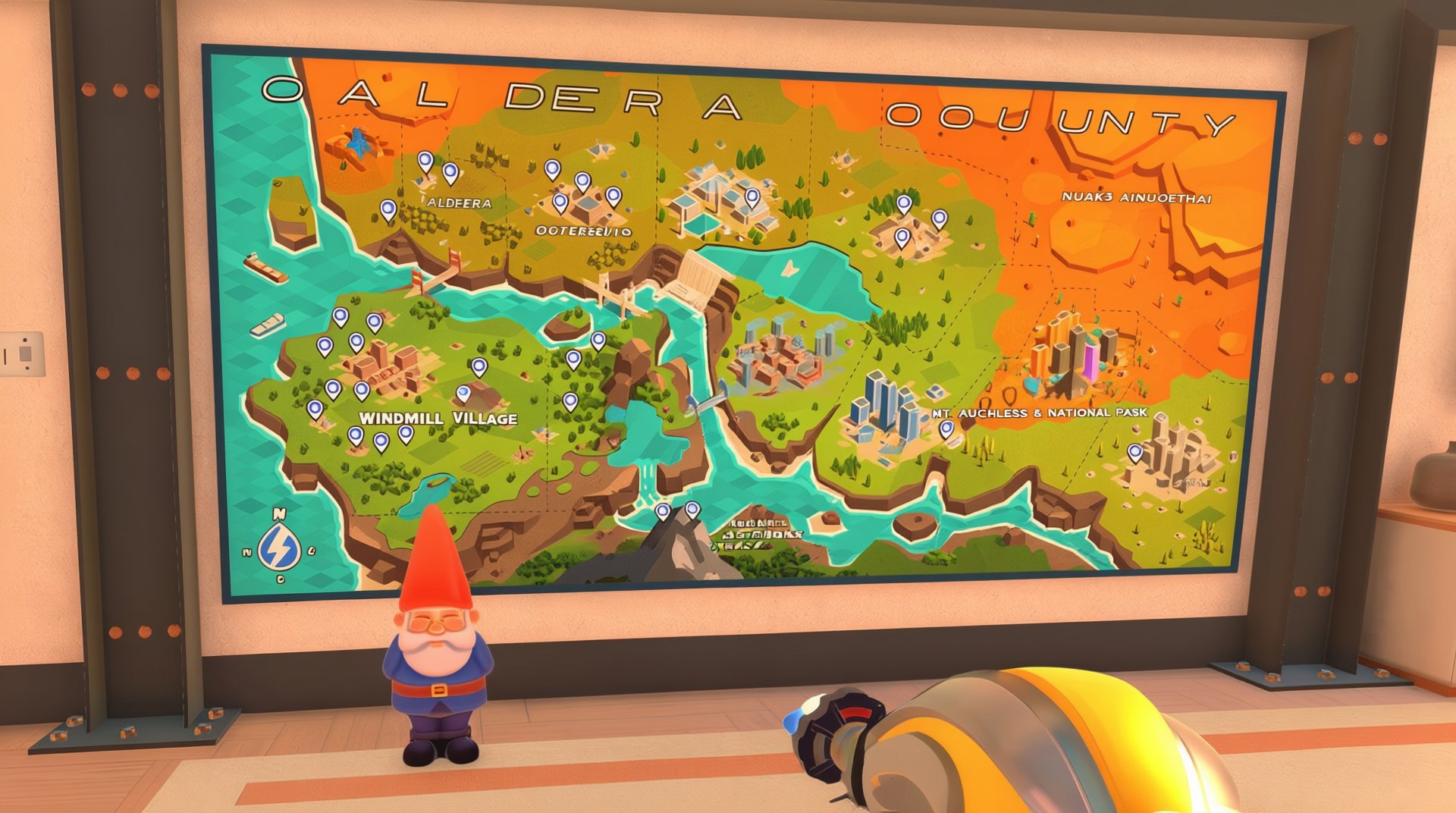
PowerWash Simulator 2: Hidden Gnomes & Secrets - Complete Collectibles Guide
Complete guide to finding all 38 hidden gnomes, 5 hidden job challenges, and Easter eggs in PowerWash Simulator 2. Includes achievement strategies and tips.
PowerWash Simulator 2 Complete Guide: All 38 Jobs, Locations & Strategies
Master every location, vehicle, and strategy in PowerWash Simulator 2's 38-job career mode. Complete walkthrough covering equipment upgrades, co-op multiplayer, achievements, and cleaning techniques.
PowerWash Simulator 2 Co-op Guide: Best Multiplayer Strategies
Master PowerWash Simulator 2 multiplayer with our comprehensive co-op guide. Learn split-screen setup, online strategies, and teamwork tips.
AI Tactical Companion
Consult with our specialized tactical engine for Powerwash-Simulator-2 to master the meta instantly.