Outer Worlds 2 PC Optimization Guide: FPS Boost
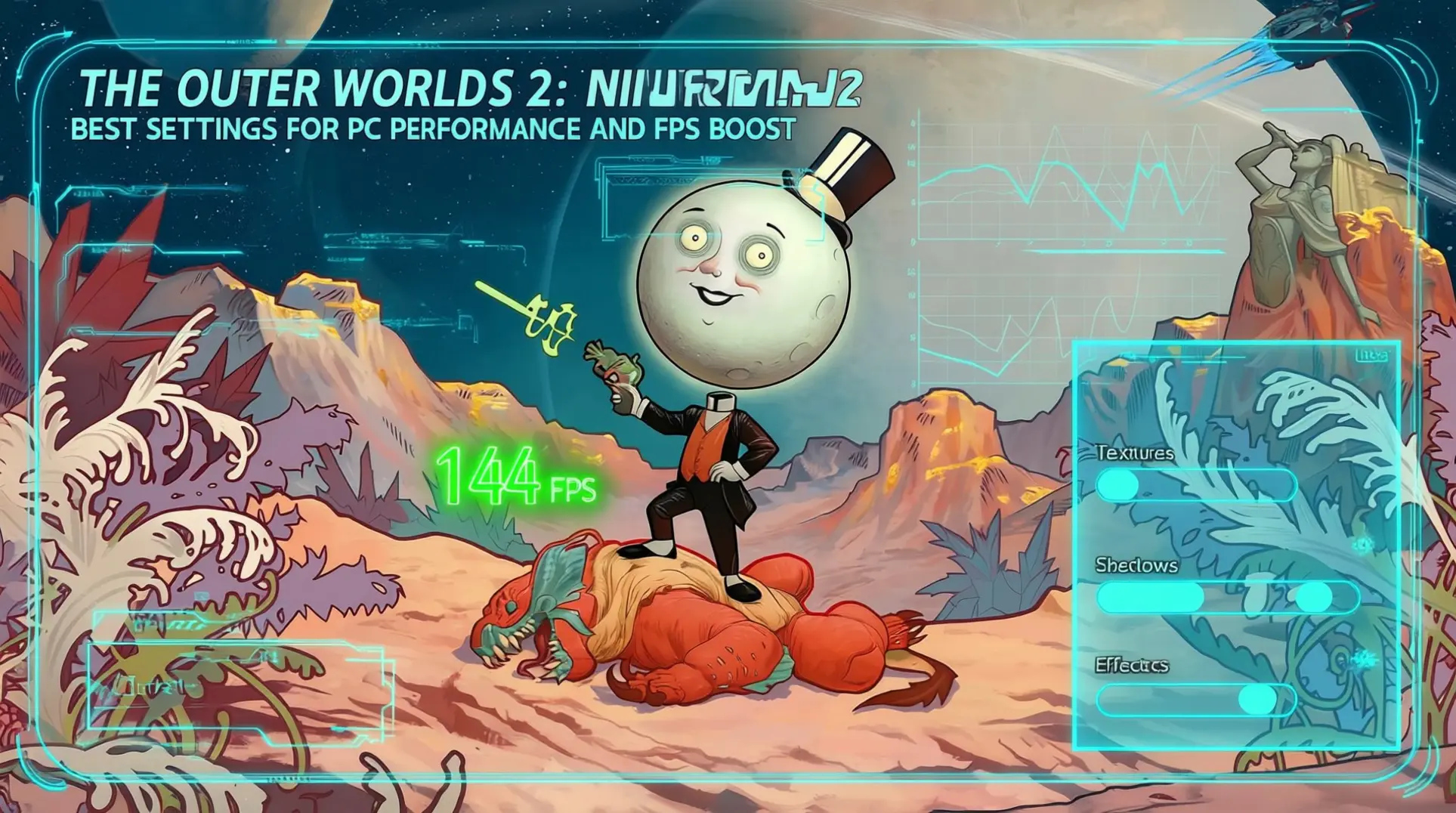
Getting The Outer Worlds 2 to run smoothly on PC requires serious hardware and know-how. The game targets 1080p 60 FPS on High settings, but achieving this demands a fairly recent hex or octa-core CPU, 16 GB of memory, and an RTX 3080 or 4070 Super.
This hefty recommended spec stands in stark contrast to the game's paltry minimum requirements, creating significant optimization challenges. Hardware falling below those minimum thresholds may result in sluggish performance or severe issues that make the game nearly unplayable.
The good news is that the optimization landscape has evolved throughout 2025. New techniques and tools have become available, while community-driven optimization solutions continue to develop and improve. This guide brings together all the latest performance tweaks, settings recommendations, and hardware advice to help you maximize FPS and enjoy The Outer Worlds 2 the way it was meant to be played.
System Requirements and Hardware Considerations
Minimum vs Recommended Specifications
The gap between minimum and recommended specs for The Outer Worlds 2 is substantial. These requirements range from decade-old hardware to more recent powerhouses, which illustrates significant optimization challenges and reflects the game's demanding nature.
Minimum Specifications:
- AMD Ryzen 5 1600 or Intel Core i5-8400 processor
- 8 GB RAM
- GTX 1060 6GB or RX 580 graphics card
Recommended Specifications:
- AMD Ryzen 5 5600X or Intel Core i7-10700K processor
- 16 GB RAM
- RX 6800 XT or RTX 3080 graphics card
The game targets 1080p 60 FPS using High quality settings. This performance target requires a fairly recent hex or octa-core CPU, 16 GB of memory, and an RTX 3080 or 4070 Super. Meeting these specs ensures smooth gameplay without visual compromises. The difference between tiers shows how hardware impacts experience. Players should understand these distinctions before purchasing. The minimum specs will run the game, but the recommended specs deliver quality gameplay.
Storage and Performance Considerations
Approximately 110 GB of SSD storage is recommended to prevent loading bottlenecks. Using slower storage will result in noticeably longer load times and potential stuttering during asset streaming.
Key Storage Requirements:
- SSD storage is essential for maintaining consistent performance
- 110 GB minimum free space recommended
- Slower storage causes longer load times and stuttering
Performance Bottlenecks: Points in your system where limited hardware resources restrict overall game performance, causing frame drops, stuttering, or long loading times.
Hardware falling below minimum requirements may result in sluggish performance or severe issues during gameplay. For optimal performance, players should ensure their system meets or exceeds recommended specifications to avoid performance bottlenecks. Investing in the recommended hardware provides the best possible experience.
Graphics Settings Optimization
High-Impact Settings: Where Frames Are Won or Lost
Shadow quality is one of the most performance-intensive settings but visually important. Start with Medium settings to find the right balance. Shadow quality can be reduced for significant FPS gains with minimal visual impact.
Virtual Shadow Maps (VSM) technology can be demanding. Reducing shadow distance can provide better performance gains than lowering overall quality. This preserves visual fidelity where it matters most. View distance reduction provides substantial performance improvements in open areas. This makes it one of the key settings for optimization. Adjust this based on your GPU's capabilities.
Lumen global illumination is a major visual feature but performance-heavy. You may need to reduce reflection quality to maintain smooth frame rates. This setting has a noticeable impact on both visuals and performance.
Virtual Shadow Maps (VSM): A modern shadow rendering technique that can be demanding on hardware. Lumen Global Illumination: A dynamic global illumination system that provides realistic lighting but is performance-heavy.
Focus on these settings first before tweaking others:
- Shadow Quality: Set to Medium initially
- View Distance: Reduce for substantial improvements in open areas
- Lumen Global Illumination: Lower reflection quality if needed
- MSAA: Avoid completely; use TAA or DLSS Quality instead
Medium-Impact Settings: Fine-Tuning Your Experience
DLSS Quality mode provides the best balance of sharpness and performance. It offers 65-70% faster performance than native 4K rendering. DLSS Performance mode extends the performance advantage to 2.2x faster than native rendering if you need maximum frame rates.
FSR is available as an alternative to DLSS for AMD graphics cards and older NVIDIA GPUs. This gives more players access to upscaling technology. Particle effects can be reduced for minor performance gains without significant visual compromise.
DLSS: Deep Learning Super Sampling, an AI upscaling technology.
These settings let you fine-tune after handling high-impact options:
- Upscaling: Use DLSS Quality mode for the best balance, or DLSS Performance mode for maximum FPS
- FSR: Use this alternative if you have AMD or older NVIDIA hardware
- Particle Effects: Reduce for minor gains without significant visual compromise
Low-Impact Settings: Visual Polish With Minimal Cost
Texture quality is generally safe to set higher even on mid-range cards. However, monitor VRAM usage carefully. Texture quality has minimal impact on FPS unless you exceed your GPU's VRAM capacity.
Most post-processing effects have minimal performance impact. Motion blur and depth of field are safe to disable based on personal preference. Players should start with conservative graphics settings and gradually increase quality while monitoring FPS.
These final tweaks add polish without significantly affecting performance:
- Texture Quality: Set higher safely, but watch VRAM usage
- Post-Processing Effects: Disable motion blur and depth of field if desired
- General Approach: Start with conservative graphics settings and gradually increase quality while monitoring FPS
Performance Tweaks and System Optimizations
Windows Optimizations
Start with Windows Game Mode. This feature prioritizes system resources for gaming and reduces background interruptions. You can enable it through Windows Settings to ensure The Outer Worlds 2 gets the attention it deserves during intense gameplay sessions.
Hardware-Accelerated GPU Scheduling: This Windows feature can sometimes cause stuttering issues. If you're experiencing performance hiccups, try disabling it in Graphics Settings to see if stability improves.
Power management matters more than you think. Set your Windows power plan to 'High Performance' or 'Ultimate Performance' to prevent power-saving throttling. This keeps your CPU running at full speed when you need it most and avoids frustrating frame drops.
Task Manager tweaks provide another boost. Set The Outer Worlds 2 to 'High Priority' for optimal CPU allocation. Also, close unnecessary background applications to free up valuable system resources and RAM before launching the game.
Memory and Storage Optimization
RAM requirements are straightforward but critical. Ensure you have 16GB minimum, though 32GB is recommended for future-proofing your system. Memory management issues can be addressed through both hardware upgrades and software optimization techniques.
Storage choice dramatically impacts loading times. Use SSD storage for game installation to reduce loading times significantly. This is one of the simplest yet most effective upgrades you can make for any modern game and directly improves streaming performance.
Troubleshooting Persistent Issues
Stuttering plagues many players. The game experiences stuttering from CPU and GPU inefficiencies, latency problems, and suboptimal streaming/memory management. Proper optimization involves addressing all three areas systematically for the best results.
The Ultimate Engine Improvements mod offers a comprehensive solution. It provides anti-freeze functionality, increased performance, reduced latency, and improved clarity. This community tool targets the root causes of many performance issues directly.
Verification Checklist:
- Verify your system meets the minimum vs recommended specifications
- Update GPU drivers to the latest version
- Check Windows updates are current
- Disable background applications before launching
- Verify game files through your launcher
- Set Windows power plan to 'High Performance'
- Enable Windows Game Mode
- Close unnecessary background processes
Hardware-Specific Recommendations
Mid-Range Systems
If you're running a GTX 1660 Super or RTX 3060, target 1080p Medium-High settings with DLSS or FSR enabled. You'll typically see 45-60 FPS in most areas. Focus on stable frame times over maximum FPS by prioritizing consistent performance over visual fidelity.
Frame Times: The measure of how long it takes to render each frame, where consistency is more important than raw FPS for smooth gameplay.
For stuttering issues, reducing shadow quality and view distance often provides the most significant performance improvements with minimal visual impact. These targeted adjustments maintain smoother gameplay without drastic quality sacrifices. For more details on these settings, see our Graphics Settings Optimization section.
High-End Systems
High-end systems with RTX 4070 or 4080 level hardware can push 1440p High-Ultra settings with DLSS Quality mode. This delivers 60+ FPS consistently across the game. You can enable ray tracing with some performance compromises, but maintaining 60+ FPS should remain the priority.
Ray Tracing: Advanced lighting technology that creates more realistic reflections and shadows, but requires significant GPU power.
Prioritize DLSS Quality mode over Performance mode to maintain visual fidelity while achieving gains. This ensures the best balance of image quality and frame rate on powerful hardware. Check out our Medium-Impact Settings section for more DLSS optimization tips.
Budget Systems
Budget systems using GTX 1050 Ti or RX 580 level cards should use 1080p Low-Medium settings with aggressive upscaling. The primary goal is stable 30 FPS gameplay. Reduce shadow quality first when adjusting settings, as this provides the biggest performance boost.
Upscaling: Technologies like DLSS and FSR that render frames at lower resolution then intelligently scale them up, boosting performance with minimal quality loss.
Focus on stable 30 FPS by prioritizing consistent frame times over peak performance numbers. Aggressive upscaling through DLSS or FSR is essential for playable frame rates on limited hardware. Refer to our High-Impact Settings section for specific shadow quality recommendations.
Troubleshooting Common Performance Issues
Performance varies significantly across different hardware configurations. Monitor CPU and GPU usage to identify bottlenecks, and check for thermal throttling with proper cooling solutions.
Thermal Throttling: When a component reduces performance automatically to prevent overheating, causing FPS drops.
Verify RAM is running at rated speeds and consider PCIe lane limitations on older motherboards. Some players report FPS drops in large cities or complex scenes. The Ultimate Engine Improvements mod has helped users achieve FPS improvements of 5+ in demanding areas, with minimum FPS increasing from 42 to 49 in large cities.
Steam Deck users should use FSR for upscaling and target 30-40 FPS for better battery life, adjusting TDP based on performance needs. TDP: Thermal Design Power, adjustable on Steam Deck to balance performance and battery consumption.
Quick Reference Settings Table
| Hardware Tier | Resolution | Graphics Settings | Upscaling | Expected FPS | Key Optimizations |
|---|---|---|---|---|---|
| Budget (GTX 1050 Ti/RX 580) | 1080p | Low-Medium | DLSS/FSR Performance | 30 FPS | Reduce shadows first, focus on stable frame times |
| Mid-Range (RTX 3060/GTX 1660 Super) | 1080p | Medium-High | DLSS/FSR Quality | 45-60 FPS | Balance shadow quality and view distance |
| High-End (RTX 4070/4080) | 1440p | High-Ultra | DLSS Quality | 60+ FPS | Enable ray tracing selectively, maintain DLSS Quality |
| Enthusiast (RTX 4090) | 1440p/4K | Ultra | DLSS Quality/Balanced | 80+ FPS | Consider ray tracing, focus on visual fidelity |
Conclusion
Optimizing The Outer Worlds 2 demands a systematic approach tailored to your hardware tier. Begin with recommended settings and adjust gradually, leveraging upscaling technologies like DLSS or FSR for significant performance boosts. Prioritize stable frame times over maximum FPS, keep drivers and system software updated, and monitor resources to identify bottlenecks.
Don't overlook Windows optimizations like Game Mode and power plans, as they can significantly impact performance. As the optimization landscape evolves with new community-driven solutions in 2025, staying informed is key. Implement these strategies methodically, testing each change to achieve the best balance of visual quality and smooth performance for your specific setup.
More the-outer-worlds-2 Guides

The Outer Worlds 2: The Ultimate Scrap Economy Guide
Master the breakdown system in The Outer Worlds 2. Learn top farming routes, essential perks like Innovative and Scrapper, and advanced strategies to turn junk into victory.
The Outer Worlds 2 Weapon Mod Synergy Guide: Master Builds & Combinations
Complete guide to weapon mod synergy in The Outer Worlds 2. Learn sniper, DPS, elemental, melee, hybrid, and companion builds with optimal mod combinations.
The Outer Worlds 2 Endgame Guide: Mastering Resource Management After Level 30
Learn how to overcome The Outer Worlds 2's permanent resource crisis at level 30. Master farming, crafting, and strategic decisions for the best ending.
AI Tactical Companion
Consult with our specialized tactical engine for the-outer-worlds-2 to master the meta instantly.