Complete ARC Raiders Troubleshooting Guide: Fix ARMR0100, ARMR0002, Crashes & Connection Issues
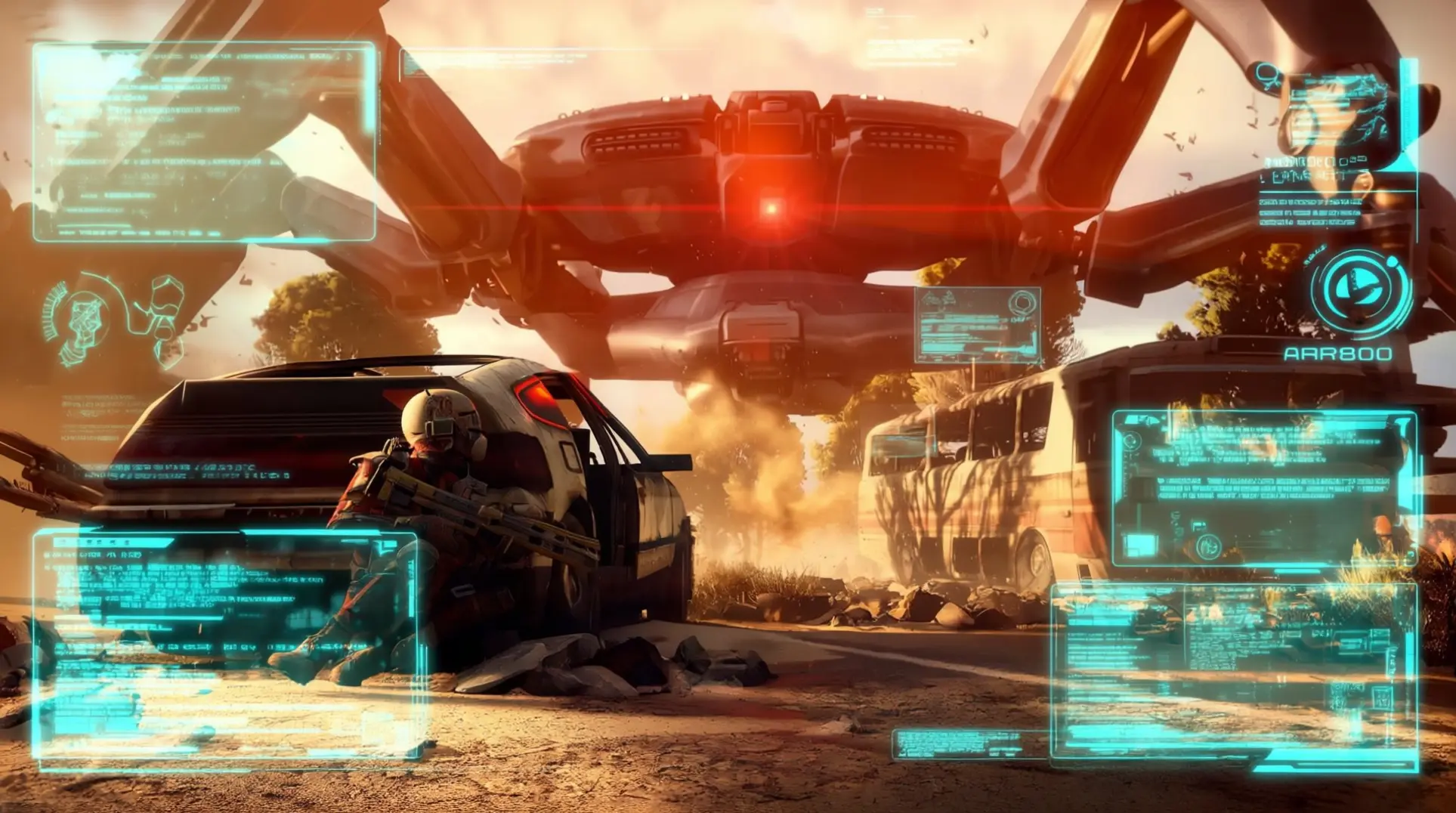
ARC Raiders has established itself as a popular multiplayer experience, bringing players together in intense cooperative combat scenarios. Like many live-service titles, technical issues can occasionally disrupt gameplay and frustrate the community. This comprehensive troubleshooting guide directly addresses the most persistent problems affecting PC players, including game crashes, connection instability, and performance degradation.
We provide detailed solutions for specific error codes ARMR0100 and ARMR0002, along with systematic fixes for general performance issues. Whether you're encountering fatal errors on launch, mid-match disconnections, or unexplained crashes to desktop, our step-by-step approach will help you return to the action quickly.
Each solution has been tested and optimized for the PC gaming environment, with clear explanations of technical concepts and actionable steps you can implement immediately. From verifying game files to adjusting network settings, this guide covers both basic and advanced troubleshooting methods. Our goal is to minimize your downtime and maximize your gaming experience with proven solutions that address root causes rather than symptoms.
Understanding ARC Raiders Error Codes
Error codes in gaming are diagnostic messages that help identify specific problems preventing your game from running properly. They act as a communication bridge between the game's internal systems and you, the player, pinpointing exactly where the failure occurs.
ARMR0100 typically indicates a launch or initialization failure. This error often appears when ARC Raiders cannot start correctly due to issues with system permissions, anti-cheat software conflicts, or missing prerequisites like Visual C++ redistributables. It usually manifests immediately when you attempt to launch the game.
ARMR0002 generally points to file corruption or access problems. This occurs when the game cannot read or write necessary files, often because of corrupted data, restrictive antivirus settings, or insufficient disk permissions. This error may appear during updates or gameplay.
Understanding these distinctions is crucial because each code requires a different troubleshooting approach. The solutions below are organized by error type to help you resolve your specific issue efficiently.
Fixing ARMR0100 Error Code
The ARMR0100 error code indicates a launch or initialization failure. This typically occurs when ARC Raiders cannot properly start due to system permission issues, antivirus interference, or missing dependencies.
Solution 1: Anti-Virus and Firewall Exceptions
Windows Defender and third-party antivirus software often block game files, causing ARMR0100 errors. Adding ARC Raiders to your antivirus exceptions resolves most launch issues.
For Windows Defender:
- Open Windows Security (Windows Defender)
- Navigate to "Virus & threat protection"
- Click "Manage settings" under Real-time protection
- Temporarily disable Real-time protection
- Launch ARC Raiders to test
- If successful, add the game folder to exclusions:
- Go to "Virus & threat protection" > "Manage settings"
- Click "Add or remove exclusions"
- Add folder:
C:\Program Files (x86)\Steam\steamapps\common\ARC Raiders - Re-enable Real-time protection
For Third-Party Antivirus:
- Open your antivirus software
- Look for "Exclusions," "Whitelist," or "Trusted Files"
- Add the ARC Raiders installation folder
- Also exclude the Steam executable:
C:\Program Files (x86)\Steam\Steam.exe
Solution 2: Run as Administrator
Running ARC Raiders with administrator privileges bypasses many permission-related issues.
- Navigate to your ARC Raiders installation folder
- Right-click on the game executable (usually
ARC_Raiders.exe) - Select "Run as administrator"
- If this resolves the issue, set it permanently:
- Right-click the executable again
- Select "Properties" > "Compatibility" tab
- Check "Run this program as an administrator"
- Click "Apply" and "OK"
Solution 3: Verify Game Files Integrity
Steam's built-in verification tool can detect and repair corrupted game files causing ARMR0100.
- Open Steam and go to your Library
- Right-click on ARC Raiders
- Select "Properties"
- Go to the "Local Files" tab
- Click "Verify integrity of game files..."
- Wait for the process to complete (5-15 minutes)
- Restart Steam and try launching ARC Raiders again
Resolving ARMR0002 Error Code
ARMR0002 errors typically indicate file corruption, missing dependencies, or installation issues. This error often appears during updates or when accessing specific game features.
Solution 1: Complete Game Reinstallation
When verification fails, a clean reinstall resolves persistent ARMR0002 errors.
- Uninstall ARC Raiders through Steam:
- Right-click ARC Raiders in your Library
- Select "Manage" > "Uninstall"
- Manually delete remaining files:
- Navigate to
C:\Program Files (x86)\Steam\steamapps\common\ - Delete the "ARC Raiders" folder if it remains
- Navigate to
- Clear Steam's download cache:
- Steam > Settings > Downloads > Clear Download Cache
- Restart your computer
- Reinstall ARC Raiders from Steam
- Allow the installation to complete fully before launching
Solution 2: Update Visual C++ Redistributables
Missing or outdated Visual C++ packages commonly cause ARMR0002 errors.
- Download the latest Visual C++ Redistributable packages from Microsoft's official website
- Install both x64 and x86 versions:
- Microsoft Visual C++ 2015-2022 Redistributable (x64)
- Microsoft Visual C++ 2015-2022 Redistributable (x86)
- Restart your computer
- Launch ARC Raiders to test
Solution 3: Check System File Integrity
Windows system file corruption can affect game performance and cause ARMR0002 errors.
- Open Command Prompt as Administrator
- Run the System File Checker:
sfc /scannow - Wait for the scan to complete (may take 15-30 minutes)
- If issues are found, restart your computer
- For more comprehensive repair, run:
DISM /Online /Cleanup-Image /RestoreHealth - Restart and test ARC Raiders
Fixing Game Crashes and Freezes
Beyond specific error codes, ARC Raiders may experience general crashes during gameplay, cutscenes, or specific actions.
Solution 1: Update Graphics Drivers
Outdated graphics drivers are the primary cause of game crashes.
For NVIDIA Users:
- Download GeForce Experience or visit nvidia.com/drivers
- Update to the latest Game Ready Driver
- Perform a clean installation:
- Use DDU (Display Driver Uninstaller) in safe mode
- Install the latest driver
For AMD Users:
- Use AMD Radeon Software or visit amd.com/support
- Install the latest Adrenalin driver
- Choose "Express Installation" for stability
For Intel Users:
- Visit intel.com/content/www/us/en/support
- Download Intel Graphics Command Center
- Update to the latest driver version
Solution 2: Adjust Graphics Settings
Optimizing in-game settings prevents crashes on borderline systems.
In ARC Raiders Graphics Settings:
- Reduce "Texture Quality" to Medium or Low
- Set "Shadow Quality" to Low
- Disable "Ray Tracing" if enabled
- Lower "Anti-Aliasing" to 2x or off
- Reduce "View Distance" to Medium
- Disable "Motion Blur" and "Depth of Field"
Windows Graphics Settings:
- Right-click ARC Raiders executable
- Select "Properties" > "Compatibility"
- Check "Disable fullscreen optimizations"
- Click "Change high DPI settings"
- Check "Override high DPI scaling behavior"
- Set scaling to "Application"
Solution 3: Monitor System Temperatures
High GPU/CPU temperatures cause crashes and performance issues.
Monitoring Tools:
- Download MSI Afterburner or HWiNFO64
- Monitor temperatures during gameplay:
- GPU: Should stay below 80°C
- CPU: Should stay below 85°C
Cooling Solutions:
- Clean dust from computer fans and heatsinks
- Ensure proper case ventilation
- Consider additional case fans if temperatures remain high
- Repaste CPU/GPU thermal paste if older than 2 years
Solving Connection and Network Issues
Connection problems affect matchmaking, cause lag, and result in server disconnections.
Solution 1: Port Forwarding Configuration
ARC Raiders requires specific ports for optimal connectivity.
Required Ports:
- UDP 27015-27030 (Game traffic)
- UDP 27031-27036 (Steam browser traffic)
- TCP 27036-27037 (Steam client)
Router Configuration:
- Access your router's admin panel (usually 192.168.1.1)
- Navigate to "Port Forwarding" or "Virtual Servers"
- Forward the UDP ports listed above to your computer's IP
- Save settings and restart router
Solution 2: DNS and Network Settings
Optimizing DNS settings improves connectivity and reduces latency.
Switch to Gaming DNS:
- Open Network and Sharing Center
- Right-click your active connection > Properties
- Select "Internet Protocol Version 4 (TCP/IPv4)" > Properties
- Select "Use the following DNS server addresses"
- Primary DNS:
1.1.1.1(Cloudflare) - Secondary DNS:
8.8.8.8(Google) - Click OK and restart
Network Optimization:
- Disable Windows Update delivery optimization
- Set network as "Private" in Windows settings
- Disable VPN if active
- Use wired ethernet connection when possible
Solution 3: Check Server Status
Verify ARC Raiders servers are operational before troubleshooting.
- Visit the official ARC Raiders website or social media
- Check server status pages or community forums
- Look for maintenance announcements
- Use third-party monitoring sites like Down For Everyone
Advanced Technical Solutions
For persistent issues requiring deeper troubleshooting.
Solution 1: Windows Updates and Patches
Ensure your operating system is fully updated for compatibility.
- Open Windows Settings > Update & Security
- Click "Check for updates"
- Install all available updates
- Restart your computer
- Repeat until no updates remain
Solution 2: Disable Overlays and Background Apps
Third-party software can interfere with game stability.
Disable Common Overlays:
- Discord: Settings > Game Overlay > Disable
- NVIDIA ShadowPlay: Disable in GeForce Experience
- AMD Radeon: Disable in Radeon Software
- Steam: Settings > In-Game > Disable Steam Overlay
Close Background Applications:
- Press Ctrl+Shift+Esc to open Task Manager
- End unnecessary processes
- Disable startup programs in Settings > Apps > Startup
Solution 3: Hardware Diagnostics
Test system components for hardware-related issues.
RAM Testing:
- Open Command Prompt as Administrator
- Run:
mdsched.exe - Restart and allow memory test to complete
Storage Health:
- Download CrystalDiskInfo or similar tool
- Check drive health status
- Run disk error checking:
chkdsk C: /f
GPU Stress Testing:
- Use FurMark or similar tools
- Monitor for artifacts or crashes
- Check temperatures during stress test
Prevention and Best Practices
Proactive measures prevent future technical issues.
Regular System Maintenance
Weekly Tasks:
- Clear temporary files using Disk Cleanup
- Restart your computer to refresh system processes
- Check for driver updates
Monthly Tasks:
- Run Windows Update
- Clean registry with CCleaner
- Defragment hard drives (not SSDs)
- Update antivirus definitions
Game-Specific Optimization Tips
ARC Raiders Performance Settings:
- Use fullscreen mode for best performance
- Enable V-Sync to prevent screen tearing
- Set frame rate limit to 60 FPS for stability
- Use DirectX 12 if available
- Enable "Game Mode" in Windows settings
FAQ Section
Q: What does ARMR0100 error mean? A: ARMR0100 indicates a launch or initialization failure, typically caused by antivirus interference, missing permissions, or corrupted game files. It usually appears immediately when attempting to start ARC Raiders.
Q: How long does game file verification take? A: Steam's file verification typically takes 5-15 minutes depending on your system speed and the size of the ARC Raiders installation. Larger installations may take longer.
Q: Will reinstalling delete my game progress? A: No, reinstalling ARC Raiders will not delete your progress. Game saves are stored separately from the installation files and are preserved unless you manually delete them.
Q: What are the minimum system requirements? A: ARC Raiders requires Windows 10 64-bit, Intel i5-8400 or AMD Ryzen 5 2600, 8GB RAM, GTX 1060 or RX 580, and 50GB storage space.
Q: Why do I get disconnected from matches? A: Connection issues can result from network problems, server overload, or firewall interference. Check your internet connection, verify port forwarding, and ensure your antivirus isn't blocking the game.
Conclusion
Technical issues in ARC Raiders can be frustrating, but most problems have straightforward solutions. Start with the basic troubleshooting steps for your specific error code, then progress to more advanced solutions if needed. Remember to verify server status before troubleshooting, as some issues may be on the developer's end.
For unresolved issues, the ARC Raiders community and official support channels are valuable resources. The game's Discord server and official forums often have the latest information about known issues and developer responses.
Regular system maintenance, updated drivers, and optimized settings will help prevent future technical problems. Keep this guide bookmarked for quick reference when issues arise, and don't hesitate to reach out to the community for additional support.
By following these systematic troubleshooting steps, you should be able to resolve most ARMR0100 and ARMR0002 errors, along with general crashes and connection issues, ensuring a smooth gaming experience in ARC Raiders.
More Arc-Raiders Guides
ARC Raiders Shield Mastery Guide: Complete Breakdown of Mechanics, Weapons & Loadouts
Learn how shields actually work in ARC Raiders. Master damage mechanics, optimal weapons, and perfect loadouts for PvP and PvE. Break shields efficiently with our expert guide.
ARC Raiders Shield Mechanics: Complete Damage Calculation & Strategy Guide
Master ARC Raiders' shield system with our complete guide to damage calculation, shield types, recharge mechanics, and PvP strategies for optimal survival.
ARC Raiders Extraction Guide: Mastering the 30-Minute Timer, Grace Period & Bug Workarounds
Complete guide to ARC Raiders extraction mechanics: Learn how the 30-minute timer works, grace period secrets, current bugs, and proven strategies for successful escapes.
AI Tactical Companion
Consult with our specialized tactical engine for Arc-Raiders to master the meta instantly.