Complete RimWorld Modding & Development Mode Guide 2025
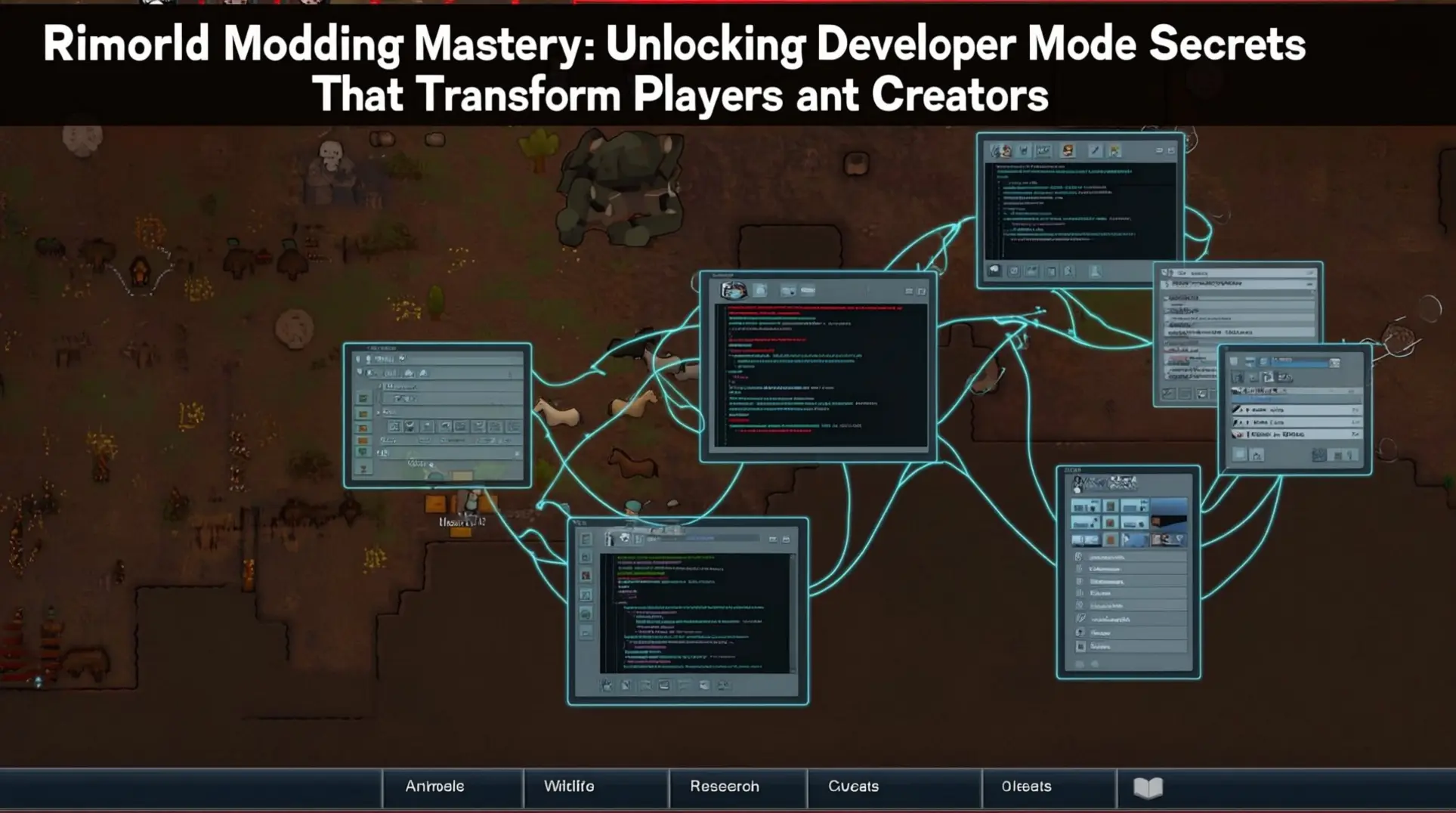
RimWorld's Thriving Modding Ecosystem
RimWorld's modding scene is absolutely massive. The Steam Workshop contains over 15,000 mods representing massive user-created content, while the RimWorld Steam Community has 493K subscribers indicating a large active player base.
This vibrant ecosystem transforms RimWorld from a survival simulator into an infinite canvas. RimWorld remains one of Steam's most modded games in 2025, with players creating entirely new experiences daily.
Development Mode: Your Gateway to Creation
Development Mode: A built-in debugging and testing suite that can be activated through the options menu.
This powerful tool serves a dual purpose. Development mode serves as both debugging tool for developers and cheat menu for players who want to experiment. It lets you spawn items, trigger events, and test scenarios instantly.
What This Guide Will Teach You
RimWorld has built-in support for modding with Steam Workshop integration. The modding framework allows both XML-based content mods and C# assembly mods for different skill levels.
You'll learn how to harness development mode for testing your creations. We'll walk you through building your first mod, regardless of your technical background.
- Master the development mode interface for rapid testing
- Create XML mods to add new items and scenarios
- Build C# assembly mods for advanced functionality
Understanding RimWorld's Development Mode
What is Development Mode?
Development Mode is RimWorld's built-in debugging and testing suite. This feature serves both as a debugging tool for developers and as a cheat menu for most other players. You can activate development mode through the options menu, unlocking a suite of debug and cheat tools that aren't normally available.
When active, development mode appears as an additional menu on the top of the screen, displaying 9 icons next to the colonist bar. The middle icon opens the Debug Actions menu, which represents the central feature of this testing suite.
Debug Actions Menu: The primary interface for spawning items, triggering events, and performing various testing actions.
The development mode toolbar provides comprehensive tools for spawning items, testing events, and debugging game mechanics. Development mode is primarily designed as a debugging tool for testing the game and its mods, providing access to console commands and various testing utilities that streamline the creation process.
Key Benefits for Modders
- Development mode allows modders to rapidly test their creations by spawning items, triggering events, and debugging game mechanics without normal gameplay progression.
- The Debug Actions menu provides comprehensive item spawning capabilities for weapons, apparel, and other game elements directly into the world.
- Development mode enables you to trigger specific events and test how mods interact with scenarios like raids, trader arrivals, and other incidents.
- Debugging tools help identify and resolve conflicts between mods and other installed content.
- Dev mode can spawn the vast majority of modded content including entities, equipment, and events, making it essential for testing compatibility and functionality.
Activating Development Mode
Step-by-Step Activation Process
To activate Development Mode in RimWorld, start by launching the game and accessing the Options menu from the main menu. You can also press the ESCAPE key to bring up the in-game options menu.
In the Options menu, navigate to the General section. The Development Mode option is typically located on the right side of the interface.
- Locate the Development Mode option which will initially show as a Red X
- Click or toggle it to change it to a Green Checkmark to activate Development Mode
When Development Mode is successfully activated, you'll see a green checkmark near the Development Mode option. This indicates it's activated and ready for use.
After activation, Development Mode causes a variety of debug options to appear at the top of the screen. This includes the first arrow icon which opens the Debug Actions menu.
The Development Mode toggle changes from a Red X to a Green Check when activated. This visual confirmation indicates that the debug tools are now available.
Development Mode Interface Overview
When Development Mode is activated, it displays 9 icons at the top of the screen. The middle one is the Debug Actions menu that most users typically want to use.
The Development Mode toolbar appears as a red frame at the top of the screen. It's positioned next to the colonist bar and contains all the usable development and debug commands for RimWorld.
Debug Actions Menu: The first arrow icon on the Development Mode toolbar opens the main debug actions menu. This allows you to create items and trigger various events.
The three most relevant features added with Developer Mode for enhancing gameplay are the Debug Actions, Debug Settings, and God Mode features. These tools provide comprehensive control over your RimWorld experience.
God Mode: God Mode allows you to place things for free, delete health conditions from entities, sell things that don't belong to you, and remove building constraints that normally limit construction. This feature essentially gives you unrestricted building and editing powers.
Inspector Tool: The Inspector tool toggles debug inspection mode. It provides detailed information for whatever your mouse is hovering over, making it invaluable for debugging mods and analyzing game mechanics.
The Debug logging menu contains lots of debugging information about item, entity, and trait attributes. It allows you to check all game logs for performance monitoring and error tracking.
Essential Development Mode Features
Debug Actions Menu
The Debug Actions Menu is accessed by clicking the first arrow icon (leftmost icon) on the Development Mode toolbar. This opens the main debug menu providing access to console commands and various testing tools.
The menu features a categorized structure where related functions are grouped together under specific headings. This organization makes it easier to find specific tools without scrolling through hundreds of options.
Structured Format: Each debug action follows a format with three main components: Category (groups logically connected actions), Label (descriptive name for the button), and Action Type (determines how the debug action is used, with possible values including 'Action' and 'Edit').
The Incidents section allows you to execute incidents at any given moment. This is particularly useful for testing mod compatibility and gameplay balance by triggering events like raids, natural disasters, or trader arrivals.
The Tools section contains utility functions like job logging toggles. You can enable job logging through 'Actions Menu -> Tools - Pawns -> Toggle job' to track pawn behavior and debug movement issues.
The Pawns section focuses on pawn-related actions and debugging tools. It includes the ability to modify pawn attributes, health status, and behavioral patterns.
The World Generation section contains tools for manipulating world generation, terrain modification, and environmental changes.
For efficient navigation, start by identifying which category your desired action falls into. The menu is logically grouped and most functions can be found within their appropriate sections.
Spawning Items and Characters
The Debug Actions menu provides comprehensive item spawning capabilities. This allows modders to spawn weapons, apparel, and other game elements directly into the world for testing purposes.
Dev mode can spawn the vast majority of modded content including entities, equipment, and events. This makes it an essential tool for testing mod compatibility and functionality.
Follow these steps to spawn items and characters:
- Open the Debug Actions Menu by clicking the first arrow icon on the Development Mode toolbar
- Navigate through the categorized menu structure to find the appropriate spawning category
- Use the search bar functionality to quickly locate specific items or features during the mod development process
- Select your desired item, character, or event from the available options
- Place the spawned element directly into the game world
The development mode provides access to console commands and testing utilities that aren't normally available to players. This allows for comprehensive mod testing without normal gameplay progression.
Debug Logging and Output Tab
The Debug logging menu contains lots of debugging information about item, entity, and trait attributes. It allows you to check all game logs for performance monitoring and error tracking.
Inspector Tool: The Inspector tool toggles debug inspection mode. This provides detailed information for whatever your mouse is hovering over, making it invaluable for debugging mods and analyzing game mechanics.
Development mode allows modders to rapidly test their creations by spawning items, triggering events, and debugging game mechanics. This eliminates the need to play through normal gameplay progression.
Use the logging features to monitor performance metrics and identify bottlenecks in your mod. The detailed attribute information helps with balancing items, entities, and traits against existing game content.
Getting Started with RimWorld Modding
Prerequisites for Mod Development
RimWorld's modding framework is flexible. It allows for both XML-based content mods and C# assembly mods, accommodating creators with different skill levels.
- C# Knowledge: Needed for creating assembly mods that add complex functionality
- XML Familiarity: Essential for content mods that modify existing game data
- RimWorld Installation: The game has built-in support for modding with Steam Workshop integration
- Development Tools: Development mode provides debugging capabilities and testing utilities
Setting Up Your Development Environment
First, install RimWorld to access its built-in modding support. The Steam Workshop integration simplifies sharing your creations with players.
Development Mode: This debugging tool provides access to console commands and various testing utilities for modders.
You can rapidly test your mods by spawning items, triggering events, and debugging game mechanics. This eliminates the need to play through normal gameplay progression.
The Steam Workshop makes distribution simple. Players just need to subscribe to your mod, and Steam automatically downloads and installs it.
Core Modding Concepts
Understanding RimWorld's Mod Framework
RimWorld's modding framework is designed with flexibility in mind, supporting multiple approaches to content creation:
Framework Architecture
- XML-based Content Mods: Modify existing game data like items, buildings, and scenarios
- C# Assembly Mods: Add complex functionality through custom code and game logic
- Steam Workshop Integration: Built-in distribution system with automatic updates
- Dual Skill Approach: Accommodates both beginners and advanced developers
Key Framework Benefits
- Built-in Support: No additional tools required to start modding
- Workshop Distribution: Simple sharing through Steam's platform
- Modular Design: Mix and match different mod types
- Community Standards: Established conventions for compatibility
Common Mod Types
RimWorld's modding ecosystem supports two primary approaches:
XML Content Mods:
- Modify existing game elements (items, buildings, scenarios)
- Ideal for beginners with basic technical knowledge
- Examples: New weapons, building modifications, scenario tweaks
- Lower barrier to entry, faster development cycle
C# Assembly Mods:
- Add complex functionality through custom programming
- Advanced features like new AI behaviors, game mechanics
- Examples: Combat overhauls, new systems, complex interactions
- Requires programming knowledge, more powerful capabilities
Using Development Mode for Mod Testing
Testing Your Mod Features
Development mode allows modders to rapidly test their creations by spawning items, triggering events, and debugging game mechanics. You can skip normal gameplay progression and jump straight to testing your mod's functionality.
The Debug Actions menu provides comprehensive item spawning capabilities. This tool lets you spawn weapons, apparel, and other game elements directly into the world for testing purposes.
You can also trigger specific events to test how your mods interact with various game scenarios. This includes raids, trader arrivals, and other incidents.
- Spawn weapons, apparel, and other game elements directly into your test world
- Trigger raids, trader arrivals, and other incidents to test scenario interactions
- Spawn the vast majority of modded content including entities, equipment, and events for compatibility testing
Debugging Common Mod Issues
The development mode includes debugging tools that help modders identify and resolve conflicts between their mods and other installed content. These tools are essential for troubleshooting compatibility problems.
Development mode allows modders to experiment with new mods, identify problems caused by conflicts, and create custom scenarios for testing purposes. This makes it invaluable for iterative development.
- Access console commands and testing utilities not normally available to players
- Identify and resolve mod conflicts quickly
- Create custom scenarios for targeted testing
Performance Testing and Optimization
The Debug logging menu contains lots of debugging information about item, entity, and trait attributes. It also allows you to check all game logs for performance monitoring and error tracking.
The Inspector tool toggles debug inspection mode, providing detailed information for whatever your mouse is hovering over. This makes it invaluable for debugging mods and analyzing game mechanics.
Performance Monitoring Features:
- Monitor item, entity, and trait attributes for performance issues
- Check game logs for error tracking and optimization opportunities
- Inspect any game element in real-time with mouse hover details
- Track memory usage and identify performance bottlenecks
- Test mod interactions under various load conditions
Optimization Strategies:
- Use debug logging to identify slow-performing mod components
- Monitor frame rates during intensive mod testing scenarios
- Analyze memory usage patterns for memory leak detection
- Test compatibility with popular mods like Combat Extended (328,990 subscribers) and Royalty DLC integration
Advanced Development Mode Techniques
Event Triggering and Testing
Development mode enables modders to trigger specific events and test how their mods interact with various game scenarios. This includes raids, trader arrivals, and other incidents.
Incidents section: The Incidents section allows you to execute incidents at any given moment. It's particularly useful for testing mod compatibility and gameplay balance.
This section can trigger various event types instantly. This makes it invaluable for fine-tuning your mod's behavior under different conditions.
- Raids: Test defense mechanics with various enemy types and sizes
- Natural disasters: Verify building durability and survival mechanics
- Trader arrivals: Test economic systems and item interactions
- Psychic events: Validate mental state management systems
Dev mode can spawn the vast majority of modded content including entities, equipment, and events. This versatility makes it an essential tool for testing mod compatibility and functionality.
World Generation Testing
World Generation section: The World Generation section contains tools for manipulating world generation, terrain modification, and environmental changes. These controls let you shape the game world to test specific scenarios.
This gives you direct access to world-building mechanics. You can modify terrain and environments on the fly.
Testing Capabilities:
- Generate worlds with specific biomes for environmental testing
- Modify terrain types to test building placement algorithms
- Adjust temperature and weather patterns for survival testing
- Create custom map layouts for scenario-specific testing
Development mode allows modders to rapidly test their creations by spawning items, triggering events, and debugging game mechanics. This eliminates the need to play through normal gameplay progression.
Character and Faction Testing
Pawns section: The Pawns section focuses on pawn-related actions and debugging tools. It includes the ability to modify pawn attributes, health status, and behavioral patterns.
This provides comprehensive control over character testing. You can adjust health, behavior, and faction relationships.
Character Testing Tools:
- Modify pawn skills, traits, and health status instantly
- Test faction relationships and diplomacy systems
- Simulate various age groups and backgrounds
- Validate relationship dynamics and social interactions
Development mode allows modders to experiment with new mods, identify problems caused by conflicts, and create custom scenarios for testing purposes. This flexibility is crucial for ensuring your content works as intended.
Mod Publishing Best Practices
Preparing Your Mod for Release
Development mode is an essential tool for modders preparing their creations for release. It allows you to rapidly test content by spawning items, triggering events, and debugging mechanics without playing through normal progression.
Development Mode: A special mode that provides access to testing tools and console commands not normally available to players.
- Test mod functionality by spawning items, entities, and equipment directly
- Use debugging tools to identify and resolve conflicts with other installed content
- Verify compatibility and trigger events to test mechanics without normal gameplay progression
Steam Workshop Upload Process
RimWorld has built-in support for modding that includes Steam Workshop integration. This makes it easy for players to discover and share new content.
The Steam Workshop simplifies the installation process for players. They just need to 'Subscribe' to a mod, and Steam automatically downloads and installs it.
Publishing Checklist:
- Test with popular mods like HugsLib (1.5M+ subscribers) and RuntimeGC
- Verify save game compatibility across different game versions
- Create clear installation instructions and mod dependencies
- Test with both vanilla scenarios and popular mod combinations
- Include performance impact documentation
Maintaining and Updating Your Mod
Development mode remains valuable after your initial release. It allows you to experiment with updates and identify problems caused by conflicts with other mods.
The mode provides access to console commands and testing utilities that enable comprehensive mod testing. Use these tools to create custom scenarios for ongoing support and compatibility updates.
Maintenance Best Practices:
- Regular testing after game updates and DLC releases
- Monitor community feedback for compatibility issues
- Maintain compatibility with top 20 most popular mods
- Use Development Mode for regression testing
Troubleshooting Development Mode Issues
Debug Menu Not Opening
RimWorld does not support a default keyboard shortcut for toggling Development Mode. To enable it, press 'Escape' to open the menu, go to the 'General' tab, and check the 'Development Mode' option. Accidental reassignment or hardware issues may prevent activation.
Development Mode should only be opened during active gameplay, not during loading screens or when the game is paused, as this can cause activation failures.
- Verify your save file supports Development Mode. Dev Mode may be disabled if the save file was created in a non-Dev Mode run or if 'Permadeath' is active, requiring a new save with Dev Mode enabled.
- Test in a vanilla environment. To troubleshoot Development Mode issues, test in a vanilla game (no mods) first. If Dev Mode works, the issue is mod-related and requires incremental re-enabling to identify the culprit.
- Identify conflicting mods. Mods that alter UI, input handling, or core game mechanics can interfere with Development Mode functionality and prevent the debug menu from opening.
- Check game file integrity. Corrupted game files from incomplete updates or disk errors can prevent Development Mode from functioning, requiring verification of game integrity via Steam or Epic Games.
Common Development Mode Errors
Several mod-related issues commonly trigger Development Mode errors. Recognizing these patterns speeds up your troubleshooting process.
- UI Overhaul Conflicts: Common offenders for Development Mode conflicts include UI overhauls like Combat Extended or input managers that may need to be temporarily disabled for testing.
- Outdated Mod Versions: Outdated mods for the current game version may cause Development Mode conflicts and should be updated via mod managers like Steam Workshop or Ludeon Forums.
- Missing Compatibility Patches: Some mods offer compatibility patches like Harmony patches for Development Mode compatibility, which should be installed when available to resolve conflicts.
- Incorrect Load Order: Development Mode-compatible mods should be loaded last in the load order, which can be adjusted via mod managers like RimPy to prevent conflicts.
- Corrupted Configuration Files: As a last resort for Development Mode issues, deleting the config.xml file in the game directory can reset settings, though this should be done with proper backup.
Mod Conflict Resolution
The development mode includes debugging tools that help modders identify and resolve conflicts between their mods and other installed content.
Development mode allows modders to experiment with new mods, identify problems caused by conflicts, and create custom scenarios for testing purposes.
- Preventive Maintenance: Following best practices means regularly updating mods and the base game, creating vanilla test saves, and using mod managers to monitor conflicts.
- Community Resources: Community resources like the RimWorld Reddit or Ludeon Forums can provide mod-specific insights for persistent Development Mode troubleshooting issues.
Frequently Asked Questions (FAQ)
Is Development Mode safe to use?
Development Mode is a feature that serves both as a debugging tool for developers and as a cheat menu for most other players in RimWorld. It's primarily designed as a debugging tool for testing the game and its mods, providing access to console commands and various testing utilities. The development mode provides access to console commands and testing utilities that aren't normally available to players, allowing for comprehensive mod testing. While completely safe to use, it fundamentally alters the intended gameplay experience by giving you direct control over game mechanics.
Can I use Development Mode in multiplayer?
Development mode allows modders to rapidly test their creations by spawning items, triggering events, and debugging game mechanics without having to play through normal gameplay progression. The development mode includes debugging tools that help modders identify and resolve conflicts between their mods and other installed content.
What programming languages do I need for RimWorld modding?
RimWorld's modding framework allows for both XML-based content mods and C# assembly mods, providing flexibility for creators with different skill levels.
- XML: For content modifications
- C#: For assembly modifications
The modding framework allows both XML-based content mods and C# assembly mods for different skill levels.
How do I test mod compatibility?
Dev mode can spawn the vast majority of modded content including entities, equipment, and events, making it an essential tool for testing mod compatibility and functionality. Development mode allows modders to experiment with new mods, identify problems caused by conflicts, and create custom scenarios for testing purposes. The development mode includes debugging tools that help modders identify and resolve conflicts between their mods and other installed content.
- Spawn modded content including entities, equipment, and events
- Experiment with new mods and identify problems caused by conflicts
- Use debugging tools to resolve conflicts between mods
Can I revert changes made in Development Mode?
Development Mode may be disabled if the save file was created in a non-Dev Mode run or if 'Permadeath' is active, requiring a new save with Dev Mode enabled. To troubleshoot Development Mode issues, test in a vanilla game (no mods) first - if Dev Mode works, the issue is mod-related and requires incremental re-enabling to identify the culprit.
- Test in a vanilla game first to isolate issues
- Re-enable mods incrementally to identify the culprit
Conclusion
Start Your Modding Journey Today
Development Mode: A powerful suite of tools that lets you spawn items, trigger events, debug mechanics, and test mods directly in the game.
The Debug Actions Menu, God Mode, Inspector Tool, and Debug logging give you comprehensive tools for modding. These features provide everything you need to debug mechanics and test your creations effectively.
A Framework for Every Skill Level
RimWorld's flexible modding framework supports both XML-based content mods for beginners and C# assembly mods for advanced developers. With over over 15,000 mods available on Steam Workshop, you'll join a massive, thriving community of creators.
Share Your Vision
These tools empower players to become creators and contribute to RimWorld's thriving modding ecosystem. The Steam Workshop integration makes mod distribution simple for sharing your creations. Start experimenting today and add your own vision to the game.
More RimWorld Guides
RimWorld Pawn Mastery: Complete Colony Control Guide
Master RimWorld pawn management with our comprehensive guide covering colony scaling, automation, and the critical 14-colonist threshold.
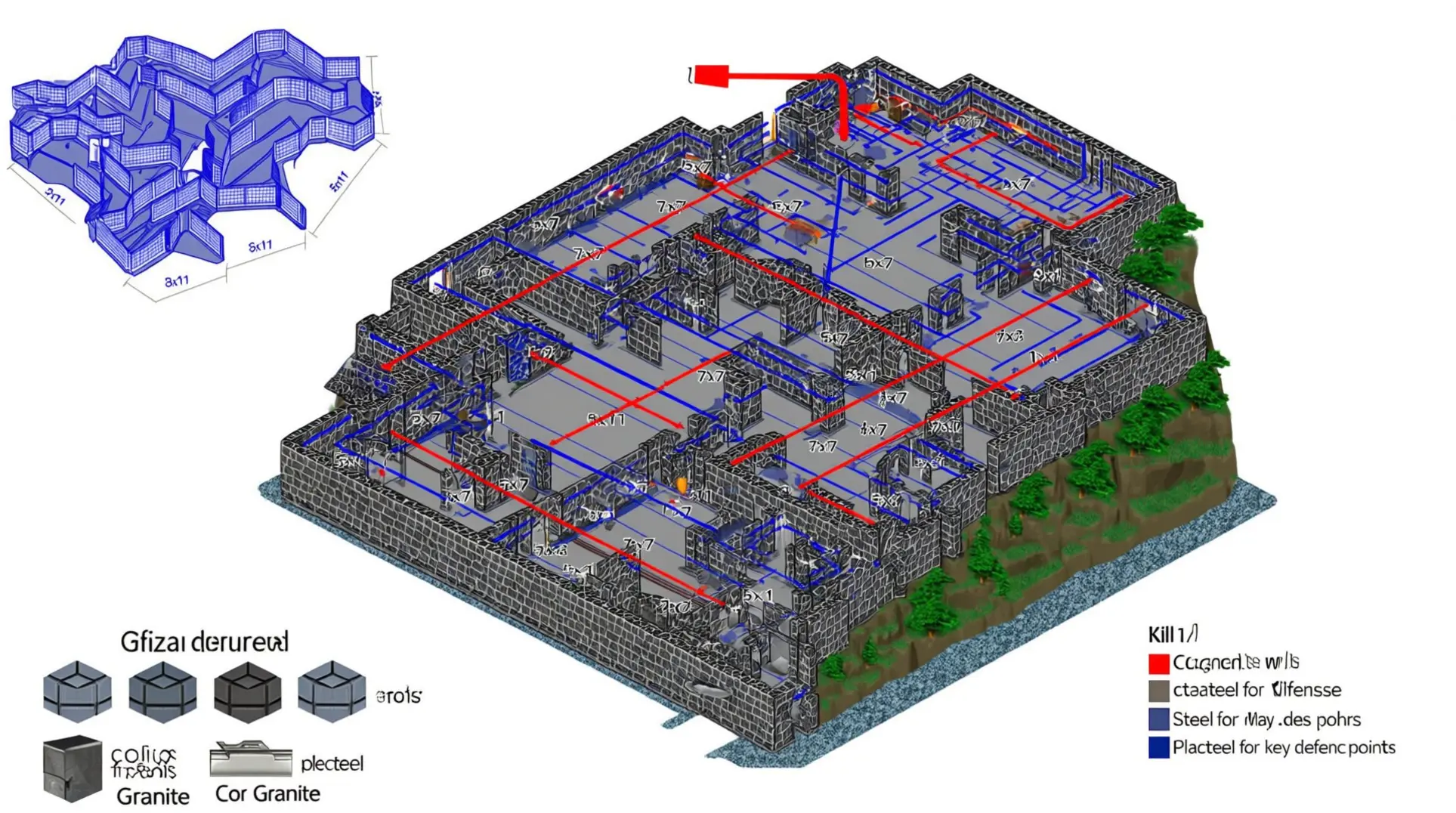
The Ultimate RimWorld Colony Blueprint: Mastering Room Sizes, Layout Efficiency, and Defensive Architecture
Complete guide to RimWorld base building covering optimal room dimensions, defensive killbox design, temperature management, and strategic material selection for colony survival.
The RimWorld Material Mastery Guide: From Basic Components to Advanced Fabrication
Complete guide to RimWorld resource management covering components, advanced components, neutroamine, plasteel, steel, and cloth. Learn crafting strategies and acquisition methods for colony survival.
AI Tactical Companion
Consult with our specialized tactical engine for RimWorld to master the meta instantly.