Steam Deck Palworld Guide: Optimize Performance Despite Unsupported Status
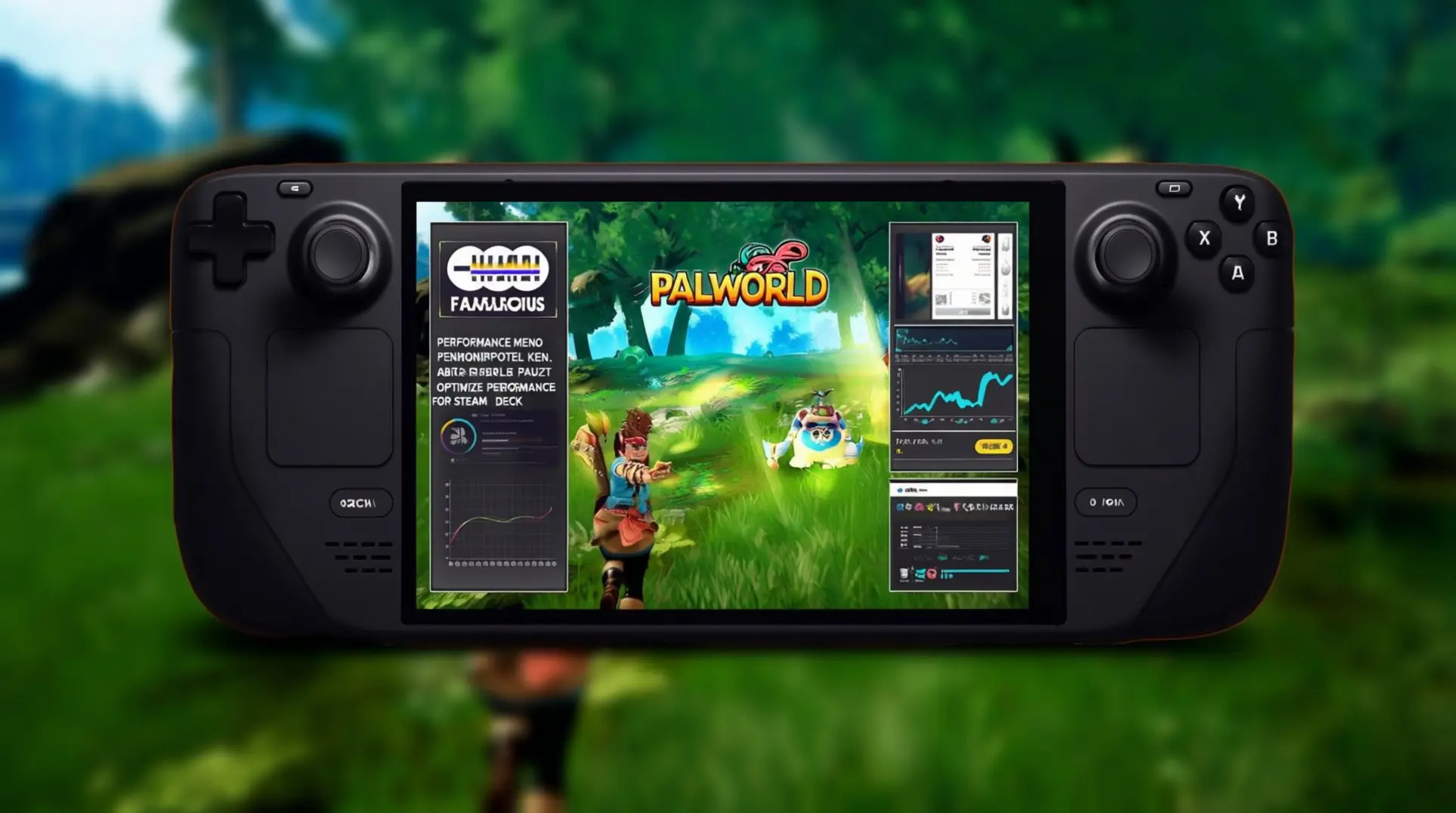
Palworld's journey on Steam Deck has been a rollercoaster of compatibility status changes, but the reality is that this monster-taming adventure runs surprisingly well on Valve's handheld despite its demanding nature. As of July 2025, the game has achieved full Steam Deck Verified status, but getting the optimal experience requires careful configuration and community-proven optimizations.
Understanding Palworld's Steam Deck Compatibility Paradox
Palworld's journey to Steam Deck verification became a perplexing case study in early 2025, perfectly illustrating the paradox where official status and actual functionality did not align.
The Downgrade Confusion
On January 1, 2025, Valve quietly downgraded the game's rating from "Playable" to "Unsupported" following the Feybreak update (likely due to font-rendering glitches) [1][2]. This move was especially confusing as it occurred during a major player resurgence fueled by the Feybreak update, which saw concurrent users skyrocket from 45,000 to over 200,000 [2].
The Paradox in Practice
The core of the paradox was that as of December 2025, Palworld was listed as 'Unsupported' by Valve and experienced notable compatibility issues on Steam Deck hardware [1][4]. Player reports and technical assessments confirmed the game had text legibility problems, default controller profiles not being recognized, and inconsistent performance without manual tweaks, preventing it from working perfectly fine out-of-the-box [1][3].
Valve's Reversal and Ongoing Mystery
Valve reversed the decision just two days later on January 3, restoring "Playable" status but with several caveats listed [1][2]. The entire episode underscored the opaque nature of Valve's verification process. As noted by outlets like GamingOnLinux, the system "remains somewhat mysterious," with games rarely receiving specific public explanations for such status changes [4].
By mid-2025, community reports suggested the game had finally achieved full "Verified" status, but the initial rollercoaster served as a clear reminder that the official badge doesn't always tell the whole story [2][5].
Essential Steam Deck Setup for Palworld Success
Getting Palworld running smoothly on your Steam Deck requires a few essential tweaks. The good news is that the game achieved full Steam Deck Verified status in July 2025, meaning it runs natively without the anti-cheat problems that plagued its initial launch [1].
Proton and Controller Configuration
For the best out-of-the-box experience, Valve officially recommends using Proton Experimental, though some users find even better stability with certain community-tested Proton versions [3].
The first thing you'll want to address is the controller. The default configuration has some quirks, like displaying incorrect input icons and requiring the touchscreen for certain actions. The fix is simple: head to the game's properties > Controller menu and browse the Steam community layouts. Look for highly-rated configurations tagged as "Palworld optimized" to find a setup that works seamlessly [3].
Performance and System Tweaks
For performance, targeting a stable 30 FPS is key. Experts recommend:
- Setting your resolution to the Deck's native 1280x800
- Turning Vsync and Motion Blur off
- Using TSR for Anti-Aliasing
- Keeping View Distance on High
- Dialing Grass Details and Shadows to Low to save precious resources [5]
Don't forget a crucial system-level tweak: set your VRAM to 4GB in the BIOS to prevent crashing, a common issue noted by the community [4]. Finally, manage your expectations for battery life; you can expect around 1 hour and 24 minutes of playtime on the original LCD model [3].
Optimal Graphics Settings for Smooth Palworld Gameplay
Achieving smooth performance in Palworld on Steam Deck requires a targeted approach to its graphics settings. The most impactful change you can make is to adjust the resolution.
Resolution and Anti-Aliasing
Running the game at its native 1280x800 resolution leads to inconsistent performance, but dropping it just one step to 1024x640 provides an immediate and significant boost, making sub-30 FPS dips a rare occurrence.
For anti-aliasing, your only option on the Steam Deck's AMD hardware is TSR (Temporal Super Resolution), as DLSS is not supported. While its performance gains aren't as substantial as other upscaling technologies, it remains the best solution available.
Texture Quality and VRAM Allocation
When it comes to textures, Medium is the sweet spot; higher settings cause noticeable performance loss. Crucially, you must set your VRAM allocation to 4GB in the SteamOS Quick Access menu. This is a vital step to combat the game's memory leak and drastically reduce crashing, especially during longer play sessions.
Other Key Settings
Other essential in-game settings include:
- Keeping Shadow Quality on Low, as it is the most performance-intensive option
- Setting View Distance to Medium
- Setting Grass Details on Low
Combining these with a 30 FPS frame limit in SteamOS will deliver a stable experience, even in busy bases, and can reach up to 45 FPS in the open world. For those seeking every last drop of performance, community recommendations also include using Cryo utilities for system-level tweaks.
Performance Benchmarks: What to Expect on Steam Deck
When it comes to running the demanding Palworld on Steam Deck, setting the right expectations is key. You can achieve a stable 30 FPS experience, but it requires significant graphical compromises and careful optimization of in-game settings.
Frame Rate and Stability
On default settings, performance is wildly inconsistent, fluctuating anywhere from 23 to 49 FPS, making it essential to manually configure your Deck for a smoother session. Performance challenges are frequent, including frame rate drops in menus, during open-world exploration, and after respawning.
Battery Life and Thermals
Battery life is a major consideration. This game is described as "a big drinker," with the original LCD model lasting approximately 1 hour and 24 minutes on a full charge. If you own a Steam Deck OLED, you are in luck, as it provides a substantially better runtime of nearly 2 hours and 20 minutes.
Thermally, the original Deck's fan becomes noticeably louder under this load, while the OLED model manages heat more efficiently for a quieter operation.
Recommended Settings for Balance
The most impactful settings to tweak are Texture Quality, Grass Details, and Shadows. For the best balance of visuals and performance, target 30 FPS with a native 1280x800 resolution, use TSR anti-aliasing, set View Distance to Low, and keep Texture Quality on High while adjusting Grass and Shadows to Medium.
Community-Proven Workarounds and Mods
The Palworld community has been hard at work developing solutions to optimize the game for Steam Deck. The standout fix is the Steam Deck Essentials mod by TheHybred, a comprehensive performance mod available on Nexus Mods specifically designed for handhelds.
The Steam Deck Essentials Mod
This mod offers performance presets that reduce graphics settings beyond the game's own options, improves anti-aliasing, and optimizes texture delivery to reduce stuttering—a crucial fix for devices running games from an SD card. According to testing, this mod can achieve a smooth mid-50s FPS on ultra settings with AMD FSR enabled.
Complementary Settings and Utilities
For the best experience, the community recommends pairing this mod with specific in-game settings. Based on testing from r/SteamDeck and XDA Developers:
- Set Shadows to Low for the most significant performance gain
- Maximize your FOV
- Disable camera shake
- Ensure 4GB of VRAM is allocated in your Steam Deck's BIOS
Many users also report that integrating the mod with CryoUtilities for system-level optimization helps eliminate persistent crashing issues that appeared after recent updates.
Remaining Challenges
Despite these improvements, some challenges remain. Players should be aware of:
- Performance regression from updates
- Memory leaks that necessitate occasional restarts
- Persistent crashes in dungeons
However, with the Steam Deck Essentials mod and these tailored settings, achieving a stable 30 FPS with peaks to 45 is very possible, making the monster-taming adventure far more enjoyable on the go.
Future-Proofing Your Palworld Experience
While Palworld has officially achieved Steam Deck Verified status, ensuring a smooth experience long-term requires a proactive approach, especially regarding your precious save data.
The Unreliability of Steam Cloud
The most critical step is to never rely solely on Steam Cloud. Despite the game's improved compatibility, the cloud synchronization between a PC and Steam Deck remains notoriously unreliable, with multiple users reporting the loss of several hours of progress when switching devices [4]. This built-in sync can sometimes load previous saves and delete your most recent advancements, putting your entire adventure at risk [2].
Manual Backup Strategies
To truly future-proof your progress, adopt a manual backup strategy. The community strongly recommends this method over trusting the automated cloud. Fortunately, Palworld includes a built-in backup system that automatically saves multiple versions of your game files, offering a safety net against data loss [2].
For maximum control, regularly copy your save files from the Steam Deck's directory to a secure location like an SD card, especially before transferring between devices or after a long play session. This simple habit, combined with keeping your game updated to benefit from ongoing fixes, is your best defense against potential setbacks and ensures your Palworld journey remains secure [1][2].
Conclusion: Mastering Palworld on Steam Deck
Palworld's Steam Deck journey demonstrates that official verification status doesn't always reflect actual gameplay experience. Despite early compatibility fluctuations, the game runs remarkably well on Valve's handheld with proper optimization.
The key to success lies in community-driven solutions like the Steam Deck Essentials mod, careful graphics settings adjustments, and proactive save management. While battery life remains a challenge and some performance quirks persist, the combination of these strategies delivers a genuinely enjoyable portable Palworld experience.
As the game continues its early access development, staying engaged with the Steam Deck community will ensure you're always prepared for whatever updates or optimizations come next.
More Palworld Guides

Palworld vs Nintendo: Inspiration or Plagiarism Battle
Explore the full story behind Nintendo's patent lawsuit against Palworld developer Pocketpair. Learn about design similarities, legal precedents, and industry impact.
Palworld PC vs Xbox Performance: Ultimate Platform Comparison Guide
Complete guide comparing Palworld performance on PC vs Xbox, including frame rates, graphics, optimization tips, and platform recommendations.

Palworld Dungeon Map: Complete Locations & Rewards Guide
Master Palworld's 139 dungeons with our comprehensive guide featuring exact coordinates, farming strategies, and reward optimization tips.
AI Tactical Companion
Consult with our specialized tactical engine for Palworld to master the meta instantly.